Embedded: How to Establish Embedding
Embedded Analytics: Get the Most Out of Sigma, Out of Sigma!
Want to use your Sigma dashboards outside of Sigma? Now you can bring them into your own application using Sigma embeds. Let your customers see your data just the way you would, and curate the experience based on who is viewing. Sigma's embedded analytics capabilities allow you to take your insightful reports that you built in Sigma and integrate them into your application. Sigma’s user-backed embedding also offers many security features as well as custom settings for how your users can interact with data in your Sigma workbooks.
Preparing the embed and secret key in Sigma
User-backed embedding is a specific type of application embedding. For any application embedding, you will need to start by generating the embed in your Sigma workbook. You can find this by selecting “Embedding” in your workbook file options.
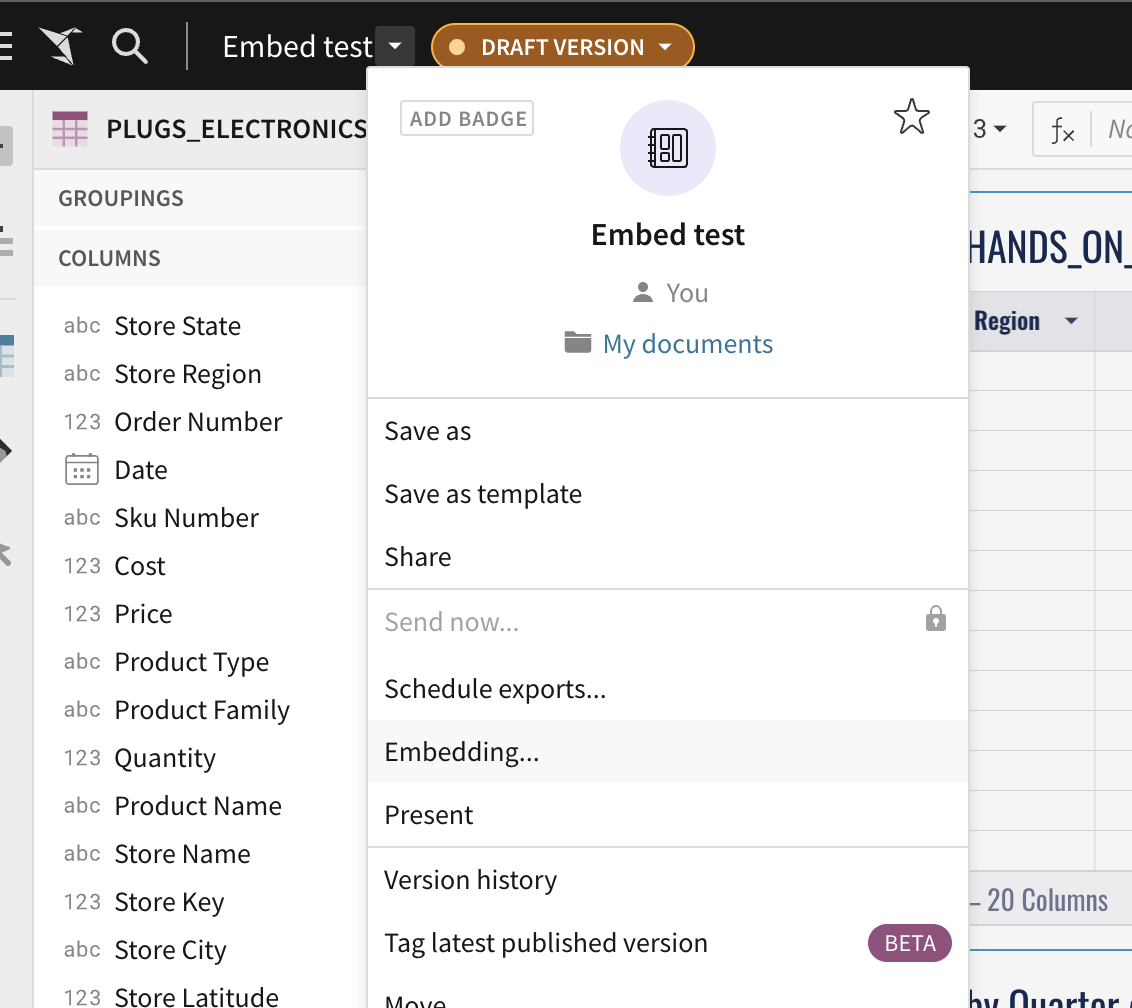
Stay on the “Application” tab and choose if you want this embed to be only a specific element, a set page, or the entire workbook. An application URL will need more set up before the embed can be displayed.
(If you would like quick and easy public embedding that allows anyone access, you can generate a public embed URL instead, read more in our documentation here: Public Embedding – Sigma Computing.
After generating the embed URL, the application embed will need a secret key. This is crucial to the security of the embed. There are two ways to create a secret key in Sigma. You can either create an embed secret key for your account, or you can create specific client and secret pairs. Both are done in the Administration page, you can follow the steps here to generate a secret key: Application Embedding – Sigma Computing.
Once the secret key is safely tucked away, then the embed is ready to be implemented into your application.
Implementing the user-backed embed into your application
Now you’re ready to set up the embed into your own personal project. See the code snippet at the bottom for a Node.js quickstart example. There can be many different approaches for how to implement, but this section will focus on generating the server-side API that generates the embed path. The embed URL from your workbook is the core URL, and it will need parameters to be added on to define security and custom settings.
Below is the Node.js quickstart example, broken up into sections for how to create the full embed URL with parameters. The parameters are explained by the tables in each section which goes over how to use them and if they are required to be added in the final URL. Section 1 goes over how to start the application and requires an input for the embed path generated from Sigma — there are no parameters in this section. Section 2 is on parameters for security measures that are required for any application embed. Section 3 is for parameters related to user details that are required for an user-backed embed. The last section talks through the optional customization options that can be used to change how you show your data in the embed.
- Section 1: Application set up, core URL
PLACEHOLDER FOR 1ST NODE.JS EXAMPLE - IS THIS INTENDED TO BE AN IMAGE OR COPY-ABLE CODE?
- Section 2: Security Measures
PLACEHOLDER FOR 2ND NODE.JS EXAMPLE
PLACEHOLDER 1ST TABLE
- Section 3: User Details
PLACEHOLDER FOR 3RD NODE.JS EXAMPLE
PLACEHOLDER 2ND TABLE
*Required and only used when the mode is set to ‘userbacked’
- Other Custom Settings
Other User-Backed Embed Resources
To get started, we recommend starting a new Node.js web application with step by step instructions on how to set up a user-backed embed. Follow the Quickstart track here.
To go through Sigma’s official documentation on user-backed embeds go here.
Sign up here to read Sigma’s whitepaper that goes over user-backed embedding in depth.